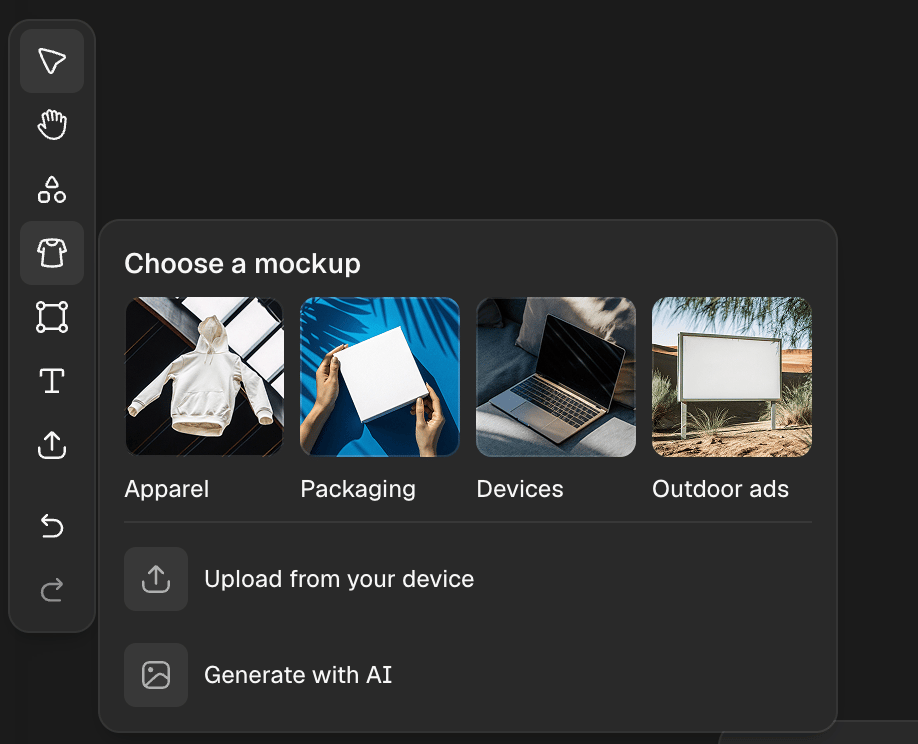
Mockup collections
Browse four collections of pre-made mockups — Apparel, Packaging, Devices, and Outdoor ads — from the Get started window. Select any ready-made mockup from a collection to add it directly to the canvas.There are three ways to create a mockup:
1. Use a pre-made mockup from a collection
- Open Get started.
- Browse the four collections — Apparel, Packaging, Devices, Outdoor ads — and select a mockup to add to the canvas.
- Apply your design by following the steps in applying your design to the mockup.
2. Generate a mockup from scratch
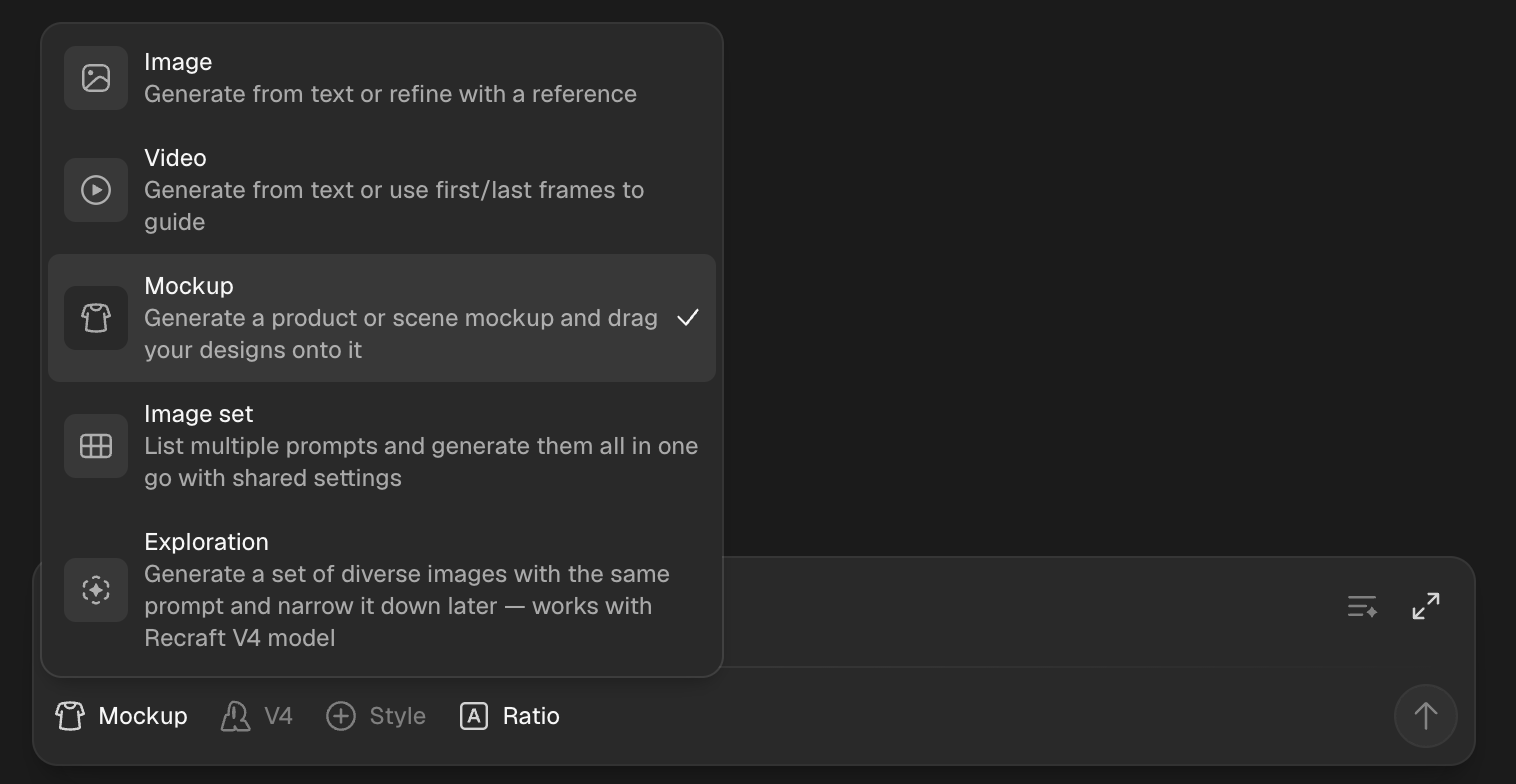
Use this option if you want to start from a prompt:- Open the prompt panel and select Mockup as the generation type (where you switch between Image / Video / etc.).
- Write a prompt describing the product you want to visualize (e.g., “white T-shirt facing forward”).
- Press Enter or click the up arrow to generate a mockup-ready image.
3. Convert an existing image to a mockup
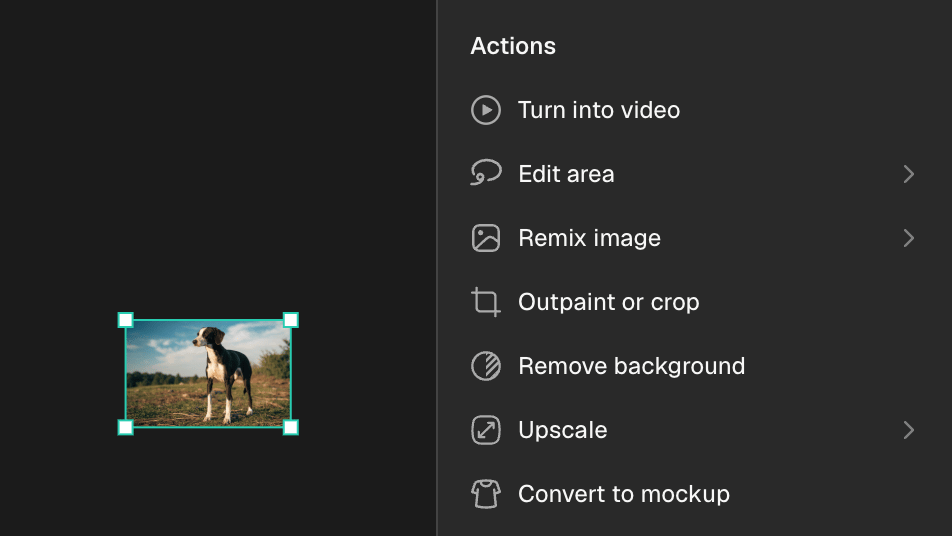
You can also convert any photorealistic image (e.g., a stock photo of a product) into a mockup:- Place the image onto the canvas.
- Select the image and in the right panel, click Convert to mockup.
- The image will be converted into a mockup frame.