

- Click the Style button above the prompt panel to open the style selector, and click Create style in the upper right.
- Choose a style mode. Use the toggle to select between V4 Styles and Legacy styles (based on V3 and V2). These two modes have different reference requirements and settings — see below.
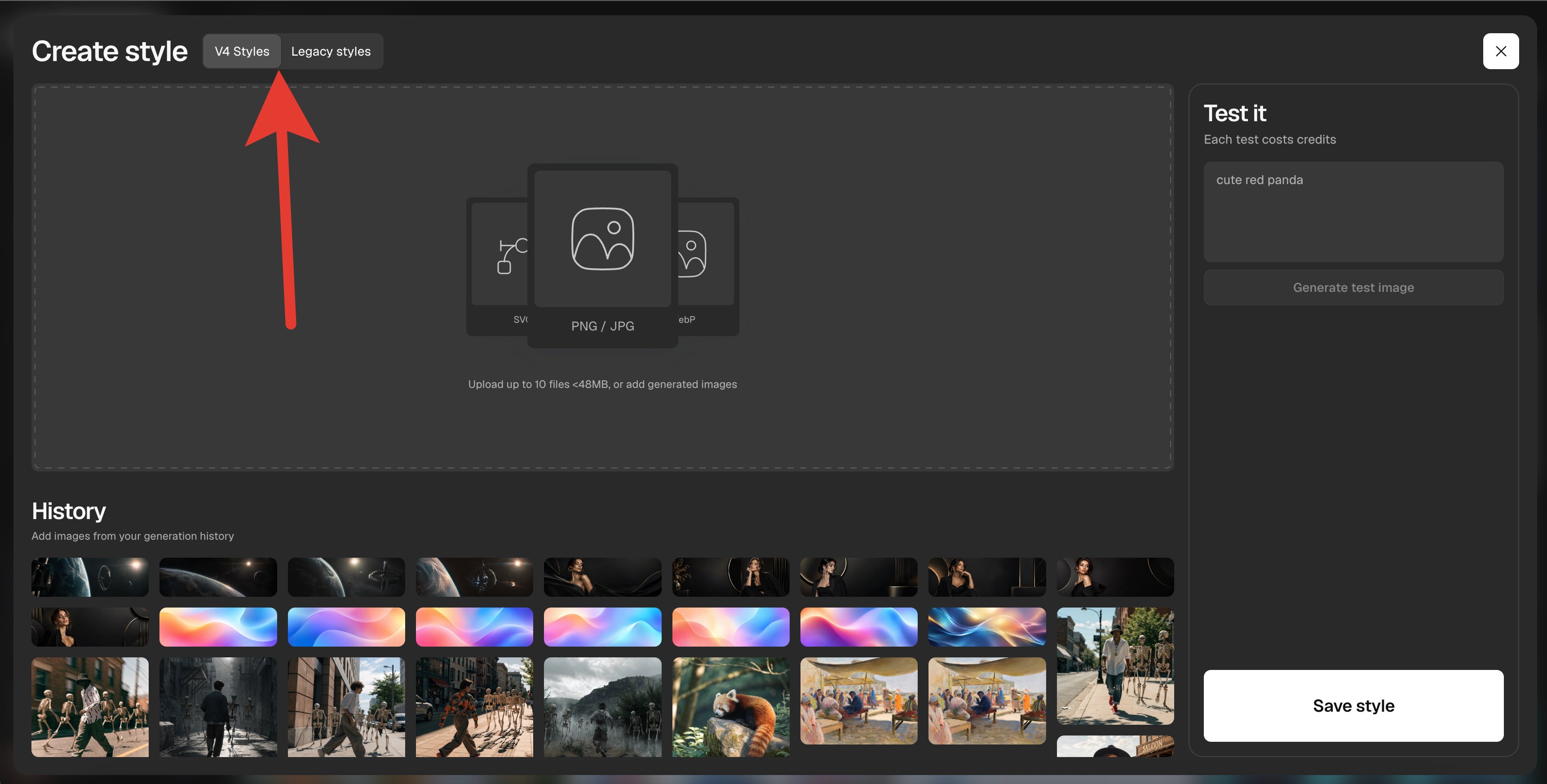
- Add reference material, following the requirements for your selected mode (see “Style modes” below), using any of the following methods:
- Drag and drop images directly into the style creation area
- Click anywhere within the gray box at the top to upload from your computer
- Add images directly from the canvas
- Select images from your History
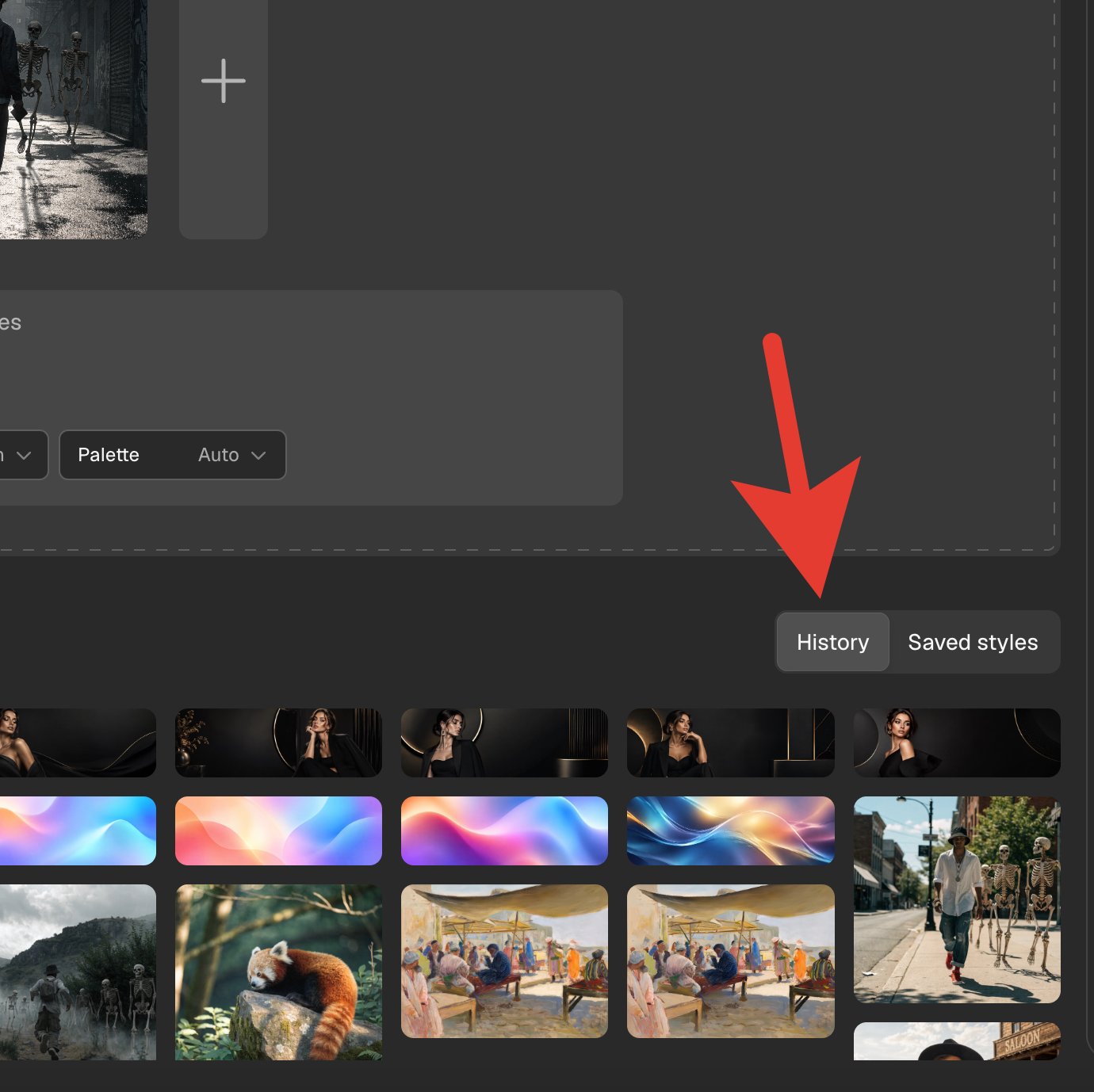
- Adjust weights: Use the percentage sliders between reference images to control how much influence each one has on the resulting style.
- Configure the available settings for your mode (Type and Palette apply to both modes; Legacy styles also require Mimic and a style prompt (highly recommended).
- Test the style
- Use the Test it panel to the right of your uploaded references.
- Enter a prompt and click Generate test image to preview results.
- If you’re not satisfied, adjust the reference mix, settings, or prompt.
- Save your style. When you’re happy with the output, click Save style. It will be added to your personal style library for use in any future project.
Style modes
V4 Styles
- Upload, select, or pull from History up to 10 image references for the style
- Styles cannot be selected as references
- No style prompt
- Available settings:
- Type — Raster, Vector
- Palette
Legacy styles (V3 and V2)
- Upload, select, or pull from History up to 5 image references for the style
- Styles can be selected as references
- Style prompt — highly recommended
- Available settings:
- Mimic — Style essentials, Style & composition
- Type — Photorealism, Illustration, Vector art, Vector icon
- Palette
Tips for best results with styles
- Use high-resolution reference images whenever possible. Low-quality references may lead to poor generation fidelity. Learn more about image resolution limits.
- Don’t be afraid to experiment. Adjust prompt wording and reference weights to refine your results.